There's a lot of Android tablets announced out there. According to their specifications, most of them are unable to bring a somewhat new user experience beyond the one Android phones already bring.
An Android tablet just can't be an Android phone with some interfaces (USB, HDMI, ...) and a wider 7+ inch screen but limited to a 800x480 resolution.
Monday, August 23, 2010

Sunday, August 8, 2010
Track Site 1.02.44 - adding support for QVGA (240x320) screen devices (Xperia X10 Mini and the likes)
Following Shantanu's post on QVGA screen (240x320) devices support (Android Dev Tip: App Not Showing on X10 Mini Marketplace), I just release a new version of Track Site (1.02.44).
Some screenshots from the emulator :


The screen is tiny but it works fine :

Drop me an email or add a comment (better) to let me know how it's behave on a real device.
Some screenshots from the emulator :


The screen is tiny but it works fine :

Drop me an email or add a comment (better) to let me know how it's behave on a real device.
Wednesday, July 14, 2010
Nexus One - how to upgrade to CyanogenMod-6 V6.0.0-RC1 (07/11/2010) - instructions
I have just installed the CyanogenMod-6 first release candidate V6.0.0-RC1 (07/11/2010) ([ROM] CyanogenMod-6 for Nexus One: Holy crap,full of AWESOME! V6.0.0-RC1 (07/11/2010) on XDA-developers) — the one that brings Froyo (Android 2.2) to my Nexus One.
As I had already installed the radio image radio-4.06.00.12_7.img when I had installed the CyanogenMod-5 5.0.8-N1, this time, I just have to upgrade to the new CyanogenMod-6 6.0.0-RC1.
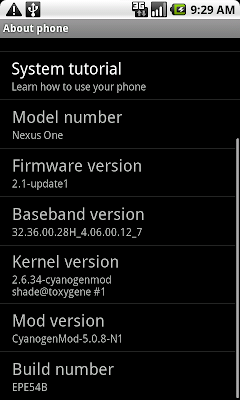
So Cyanogen's instructions to upgrade are :
- Upgrading?
1. Do a Nandroid Backup!
2. Install the CyanogenMod-6 V6.0.0-N1-RC1 - 07/11/2010 ROM (your Google apps will be backed up automatically)
I add a 3rd step to Cyanogen's instructions to install the most up to date version of Google apps :
3. Optionally install the FRF91-HDPI Google Addon as CyanongenMod 5.0.8 installs EPF30+ Google Addon
The detailed instructions to follow are the same as for Nexus One - how to upgrade to CyanogenMod-5 [stable 5.0.6 version of 04/15/2010] - detailled instructions to get the CyanogenMod-6 V6.0.0-N1-RC1 ROM update-cm-6.0.0-N1-RC1-signed.zip installed, skipping the WIPE steps 12) and 13) as it is not a first install and as Cyanogen doesn't require a WIPE in it's instructions.
Then I do again step 15) to install the FRF91-HDPI Google Addon gapps-hdpi-FRF91-signed.zip and I finish by a power down on step 17) instead of a reboot.
On step 18) everything started as usual, but the boot time was longer.

First surprise, the screen looks like my personalized screen instead of the new Froyo screen. Then my Gmail account was unavailable, and it was impossible to register a new one, making any synchronization impossible.
I then have to perform a factory reset to solve the problem. Everything works well now. But it suggests Cyanogen's instructions need another step to perform some kind of wipe.

The new CyanogenMod-6 comes with new wallpapers.

As I had already installed the radio image radio-4.06.00.12_7.img when I had installed the CyanogenMod-5 5.0.8-N1, this time, I just have to upgrade to the new CyanogenMod-6 6.0.0-RC1.

So Cyanogen's instructions to upgrade are :
- Upgrading?
1. Do a Nandroid Backup!
2. Install the CyanogenMod-6 V6.0.0-N1-RC1 - 07/11/2010 ROM (your Google apps will be backed up automatically)
I add a 3rd step to Cyanogen's instructions to install the most up to date version of Google apps :
3. Optionally install the FRF91-HDPI Google Addon as CyanongenMod 5.0.8 installs EPF30+ Google Addon
The detailed instructions to follow are the same as for Nexus One - how to upgrade to CyanogenMod-5 [stable 5.0.6 version of 04/15/2010] - detailled instructions to get the CyanogenMod-6 V6.0.0-N1-RC1 ROM update-cm-6.0.0-N1-RC1-signed.zip installed, skipping the WIPE steps 12) and 13) as it is not a first install and as Cyanogen doesn't require a WIPE in it's instructions.
Then I do again step 15) to install the FRF91-HDPI Google Addon gapps-hdpi-FRF91-signed.zip and I finish by a power down on step 17) instead of a reboot.
On step 18) everything started as usual, but the boot time was longer.

First surprise, the screen looks like my personalized screen instead of the new Froyo screen. Then my Gmail account was unavailable, and it was impossible to register a new one, making any synchronization impossible.
I then have to perform a factory reset to solve the problem. Everything works well now. But it suggests Cyanogen's instructions need another step to perform some kind of wipe.

The new CyanogenMod-6 comes with new wallpapers.

Wednesday, July 7, 2010
Track Site 1.02.42 - an improved user interface
Track Site user interface has been improved a lot over the last releases. Here is a review of the improvements.
The main screen

On the upper part of the main screen are, from left to right :
The multiple tags selector screen

This screen appears when the multiple tags filter button has been touch. Here, you can :
The bookmarks editor screen

This screens allows to edit bookmarks information :
There are 2 ways to get on this screen :
The multiple tags management screen

This screen allows for bookmark's tag management :
The main screen

On the upper part of the main screen are, from left to right :
- the bookmarks import button, which allows to import bookmarks from the stock Android browser. Just touch it and the bookmarks that have been defined since the last import will be imported into Track Site under the tag « imported »
- the multiple tags filter display, which shows the tags on which the bookmarks are filtered on
- the multiple tags filter button, which allows to set the multiple tags filter
The multiple tags selector screen

This screen appears when the multiple tags filter button has been touch. Here, you can :
- sort the tags alphabetically ; please note that selected tags have a green check on the right and that checked tags are grouped before unchecked tags to allow for better understanding
- just touch a tag to check or uncheck it ; please note that the bookmarks will be displayed only if they are tagged by all the bookmarks that are in the filter
- the clear button uncheck all the tags in one touch
- the cancel button allows to return to the main screen without changing the tag filter
- the Ok button activates the new tag filter
The bookmarks editor screen

This screens allows to edit bookmarks information :
- edit bookmark's information : the name, the description, the URL, the tags (touching the button displays the tags management screen)
- save your changes, making them permanent
- delete the bookmark : a confirmation dialog appears to confirm your decision as deleted bookmarks can't be undeleted
- just return to the main screen, discarding any change that can have been underway
There are 2 ways to get on this screen :
- using the menu button and choose the « create » or « edit » menu items
- by long pressing on the bookmark, then touching « create » or « edit » items on the contextual menu that appears above the screen
The multiple tags management screen

This screen allows for bookmark's tag management :
- selecting one or more tags
- defining new tags ; created tags are automatically checked
Monday, June 21, 2010
Nexus One - how to upgrade to CyanogenMod-5 [stable V5.0.8 (06/19/2010)] - instructions
The new 5.0.8 CyanogenMod has been released : CyanogenMod-5 for Nexus One: Kang Central Station V5.0.8 (06/19/2010) ([ROM] CyanogenMod-5: Kang Central Station (STABLE) [06/19/2010 / 5.0.8]).
Here are the detailed instructions to install it.
As the Nexus One's radio image has to be flashed to the Froyo's one, the instructions to follow are the ones Cyanogen gives for a first install, starting from step 2 with a wipe on step 4 :
- First time flashing CM to your Nexus (or coming from another ROM)?
1. Unlock your device and install Clockwork Recovery or Amon_RA's recovery image
2. Do a Nandroid backup!
3. Update your radio if necessary
4. WIPE
5. Install the ROM
5. Optionally install the Google Addon
If it's the first time flashing your Nexus, start from step 1 !! Directions can be found in the post Nexus One - CyanogenMod For Nexus One V5.0.5.3 (03/23/2010).
It may be useful to read the full process here How to Root Your Nexus One as well as other resources I have used for the initial root of my Nexus
Nexus One - CyanogenMod For Nexus One V5.0.5.3 (03/23/2010). Detailed instructions on the Cyanogen firmware upgrade process can also be found in my other post
Nexus One - how to upgrade to CyanogenMod-5 [stable 5.0.6 version of 04/15/2010] - detailled instructions.
So let's start :
Latest version: 5.0.8-N1 - 06/19/2010
Download: http://cyanogen-updater.googlecode.com/files/update-cm-5.0.8-N1-signed.zip
Download: http://android.chemlab.org/android/nexus/update-cm-5.0.8-N1-signed.zip
MD5Sum:
Google Addon: EPF30+
Mirror: http://www.mediafire.com/download.php?mjzwozjojkh
Radio Firmware: FRF50 (FROYO RADIO, REQUIRED!)
Download: http://android.chemlab.org/android/nexus/radio-4.06.00.12_7.img
MD5Sum:
Here are the detailed instructions to install it.
As the Nexus One's radio image has to be flashed to the Froyo's one, the instructions to follow are the ones Cyanogen gives for a first install, starting from step 2 with a wipe on step 4 :
- First time flashing CM to your Nexus (or coming from another ROM)?
1. Unlock your device and install Clockwork Recovery or Amon_RA's recovery image
2. Do a Nandroid backup!
3. Update your radio if necessary
4. WIPE
5. Install the ROM
5. Optionally install the Google Addon
If it's the first time flashing your Nexus, start from step 1 !! Directions can be found in the post Nexus One - CyanogenMod For Nexus One V5.0.5.3 (03/23/2010).
It may be useful to read the full process here How to Root Your Nexus One as well as other resources I have used for the initial root of my Nexus
Nexus One - CyanogenMod For Nexus One V5.0.5.3 (03/23/2010). Detailed instructions on the Cyanogen firmware upgrade process can also be found in my other post
Nexus One - how to upgrade to CyanogenMod-5 [stable 5.0.6 version of 04/15/2010] - detailled instructions.
So let's start :
- first, prepare everything that is needed. Download all the images : CyanogenMod 5.0.8-N1 latest version, EPF30+ Google Addon and FRF50 Radio Firmware
- check the MD5 checksum of the CyanogenMod 5.0.8-N1 and FRF50 Radio Firmware files with a
md5 the file to checkon the command line - connect your Nexus to your computer and mount it turning on USB storage mode, then copy the CyanogenMod 5.0.8-N1 and EPF30+ Google Addon files to the root of your SDcard but leave the FRF50 Radio Firmware on your computer as it will be flashed using a “
fastboot flash radio the radio .img file” command from your computer's command line - ensure the fastboot utility is in your PATH. The fastboot utility is not in the standard Android SDK on Mac but it can be found in the SuperBoot image which contains a fastboot version for Mac, Linux and Windows. Choose the one that pertains to your platform and put it in the
android/toolsdirectory, renaming it simply asfastboot - proceed with step 2 : the Nandroid backup. Follow detailed instructions from step 5 to step 11 of the post Nexus One - how to upgrade to CyanogenMod-5 [stable 5.0.6 version of 04/15/2010] - detailled instructions
- at then end of step 11, on screen "android system recovery", use the track ball to choose power off item (the last one), then press the track ball to select the option, and press the track ball a second time on the question to confirm the power off
- let's proceed with step 3 : update your radio. The following is based on instructions from How to Root Your Nexus One
- Boot the phone while holding down the VOLUMEDOWN-key. The screens turns white with 3 green Androids skating at the bottom of the screen. FASTBOOT is hilighted in blue. Press power button to enter fastboot mode.
- on your computer, open a command line shell. Navigate to the directory where the
radio-4.06.00.12_7.imgradio image has been stored. Then enter the command./fastboot flash radio radio-4.06.00.12_7.img. The fastboot command starts by sending the radio image and display a statussending 'radio' (26112 KB)... OKAY, then writes the radio image ans display a statuswriting 'radio'... OKAY. - back on your Nexus, select POWER DOWN item on the FASTBOOT USB screen using VOL DOWN key, then press power button.
- time to proceed with step 4 : WIPE. Reboot in RECOVERY mode by pressing power button while holding down the VOLUMEDOWN-key. The screens turns white with 3 green Androids skating at the bottom of the screen. FASTBOOT is hilighted in blue. Press VOL DOWN key to hilight RECOVERY, then press power button. The Nexus boot screen (the 4 colors cross) appears followed by the Cyan "Android system recovery" screen
- Use the trackball to hilight the "Wipe" item then press the trackball. On the "Choose wipe item" screen, wipe everything as stated on step 6 Wipe of How to Root Your Nexus One.
- select the first open and press the scrollball
- press the scrollball again to confirm
- then repeat for all items on the Wipe page
Press the Down-volume button to return to the prior menu. - it's time to proceed with step 5 : install the ROM. Back to the "Android system recovery" cyan screen, use the trackball to select item "Flash zip from sdcard", then press the trackball.
- the screen "Choose update ZIP file" shows the 2 zip files
update-cm-5.0.8-N1-signed.zipandgapps-passion-EPF30-signed.zipthat were written on the SDcard at the beginning of the process. Select the "update-cm-5.0.8-N1-signed.zip" then press the trackball to install it, pressing the trackball another time to confirm. - continue with step 5 again : optionally install the Google Addon.perform the same steps another time to install the
gapps-passion-EPF30-signed.zipthat contains Google's apps. - Back to the "Android system recovery" cyan screen, use the trackball to select item "Power off", then press the trackball to confirm.
- That's all Folks !! Reboot your Nexus and enjoy ;-)
Latest version: 5.0.8-N1 - 06/19/2010
Download: http://cyanogen-updater.googlecode.com/files/update-cm-5.0.8-N1-signed.zip
Download: http://android.chemlab.org/android/nexus/update-cm-5.0.8-N1-signed.zip
MD5Sum:
70aa95ee1b22101901cd75e9bc6e92baGoogle Addon: EPF30+
Mirror: http://www.mediafire.com/download.php?mjzwozjojkh
Radio Firmware: FRF50 (FROYO RADIO, REQUIRED!)
Download: http://android.chemlab.org/android/nexus/radio-4.06.00.12_7.img
MD5Sum:
3321c196d8ec1cf748fd20c3c4068520
Sunday, June 13, 2010
Track Site 1.02.34 - french language localization
French language support has been introduced in the version 1.02.34 of Track Site.


Tuesday, June 8, 2010
Track Site 1.02.32 - import bookmarks from stock browser
This new release of Track Site (v1.02.32) introduces the import of stock browser's bookmarks. Import is accessible through « Menu », then « More » and finally « Import browser's bookmarks ». Bookmarks that have been created since the last import are imported and tagged with « imported». Bookmarks are imported into Track Site whether they already exists or not.


Wednesday, June 2, 2010
Track Site - 1.01.31 - now build for Eclair (Android 2.1)
The 1.01.31 version of TrackSite is now build for Android 2.1 (aka Eclair). It may still work on Android 1.6 (Cupcake) devices.
This version introduces a local database to store the bookmarks and the additional infos — the description and the tag list. More to come on this side as the stock browser's bookmarks are also stored in a database.
Introducing a local database make the app working even when the SDcard has been removed.
Existing bookmarks from
This version introduces a local database to store the bookmarks and the additional infos — the description and the tag list. More to come on this side as the stock browser's bookmarks are also stored in a database.
Introducing a local database make the app working even when the SDcard has been removed.
Existing bookmarks from
/sdcard/sites.ini file are automatically loaded into the database at first launch.
Wednesday, May 26, 2010
Nexus One - upgrade to Cyanogenmod For Nexus One V5.0.7.1 (05/25/2010) - detailed instructions
Cyanogen release a new V5.0.7.1 firmware a few hours after the V5.0.7 release. The firmware can be downloaded from Cyanogenmod For Nexus One V5.0.7.1 (05/25/2010) ([ROM] CyanogenMod-5: Kang Central Station (STABLE) [05/25/2010 / 5.0.7.1] on xda-developers).
Detailled instructions to install the v5.0.7.1 firmware are the very same that can be found in Nexus One - how to upgrade to CyanogenMod-5 [stable 5.0.6 version of 04/15/2010] - detailled instructions
extract of the CHANGELOG centered on V5.0.7 :
Detailled instructions to install the v5.0.7.1 firmware are the very same that can be found in Nexus One - how to upgrade to CyanogenMod-5 [stable 5.0.6 version of 04/15/2010] - detailled instructions
extract of the CHANGELOG centered on V5.0.7 :
CHANGELOG


---- 5.0.7.1-N1

* N1: Fix blurry images in Gallery3D

* Common: Color picker and reset-to-defaults option for new UI customizations (Wysie)


---- 5.0.7

* Common: Resync with Google as of 05/20/2010

* Common: New ARM optimizations in Bionic from Jim Huang @ 0xlab

* Common: Superuser 2.1 from ChainsDD

* Common: DeskClock style tweaks from Nathan Zachary

* Common: Email signature support from Jarrett Vance

* Common: Pin-lock and alternate lockscreen framework from _avatar

* Common: Updated Japanese locales from Takuo Kitame

* Common: Added Compcache and rzscontrol to the build

* Common: APN list updated by Paul Weiss, blunden, and PsychoI3oy.

* Common: Downloader allows any file to download - thanks Eddie Ringle

* Common: Kernel updated to 2.6.33.4

* Common: Fix bug with where wrong organization is shown in-call (Boyd Bischke)

* Common: Several kernel patches from Christopher Lais (Zinx) to improve stability and support MT3G Fender/1.2

* Common: Low memory killer was pimped out by San Mehat @ Google.  Big interactivity boost especially on D/S

* Common: Updated Phone patches from Cytown (v29)

* Common: Dim the deskclock screensaver colors

* Common: Fixed race conditions and notification bugs in MMS

* Common: Added quick uninstall "Delete Zone" to Launcher and Launcher2 (Ander Webbs)

* Common: Allow widgets in the Launcher default workspace (ported from Launcher2 by Lox)

* Common: Fix race conditions and bugs in MMS app

* Common: Compact drawer can be toggled for Launcher as well as Launcher2 now

* Common: Added squisher script for release builds

* Common: Another lowmemorykiller tweak from Zinx to take cache into account

* Common: Turned off battery percentage display by default

* Common: Added "omni-tether" from Wertarbyte for BT tether

* Common: System built using Zinx's resource-sorter patch for aapt- may provide perf boost

* Common: Patch from Zinx to have background processes holding wakelocks set to a higher OOM kill adjustment (push notify, mms are good examples)

* Common: Number of recent apps is configurable - Bcrook, Pershoot & Wysie

* Common: Ability to disable icons and paths on the lockscreen - Wysie

* Common: Add pand and hidd to the build

* Common: Fix OpenVPN- manifest was using the wrong mtpd

* Common: DeskClock: Add alarm timeout setting (Michael Webster)

* Common: OpenVPN: Select between TAP and TUN interface (Takuo Kitame)

* Common: Various UI element colors are selectable via Spare Parts (Wysie)

* Common: NEON-optimized libjpeg (CodeAurora/Qualcomm)

* Droid: Fix for 50% signal loss reporting bug on Motorola Droid (Boyd Bischke)

* Droid: Disable V8. It was breaking Epocrates and other applications

* Droid: Tweak the haptic feedback to better match stock (Adrynalyne)

* Droid: Enable Dialpad for OTA Activation (nuclear305)

* D/S: Full support for Dream and Sapphire devices (eclair-ds branch)

* D/S: Updated wallpapers and Launcher for MDPI

* D/S: Build various OMX components from source (via CodeAurora)

* D/S: libcamera originally reverse engineered by NCommander

* D/S: Various driver issues causing battery drain were fixed by Zinx

* D/S: disable menu in lockscreen, fix incall mute, speed up the boot

* D/S: raise min cpufreq to 245MHz (Wes Garner)

* D/S: add Prash's bootanimation

* D/S: Using HTC "Turbo Mode" clock settings

* D/S: Fix issues with notification LED on D/S

* D/S: Don't use msmsdcc_sdioirq, this leaves IRQs on all the time which can cause battery drain

* D/S: Fix RIL settings to improve performance

* D/S: Kill logspam from OMX

* D/S: Fixed 3MP camera preview and memory leaks

* D/S: Ship old Gallery app as Gallery3D has too many issues right now

* D/S: Fixed slidelock layout

* D/S: Fixed issue with picking contact for map directions

* D/S: Change oom-killer behavior to be more "swap friendly" if you want to go against everyones advice and use swap anyway

* D/S: Launcher tray images fixed by Prash

* D/S: CPU clock tweaks from Pershoot

* N1: CPU clock and memory tweaks from Pershoot (http://github.com/pershoot)

* N1: Trackball notification color blending option (from Ehud Shabtai http://github.com/eshabtai)
Tuesday, May 25, 2010
HTC Dream & Magic - upgrade to Android 2.1 thanks to CyanogenMod 5.0.7 for Dream and Magic
Cyanogen just release the new firmware Cyanogenmod-5 For Dream/magic - Mean Lean Pastry Machine - V5.0.7 (05/25/2010) (Cyanogenmod-5 For Dream/Magic - Mean Lean Pastry Machine - V5.0.7 (05/25/2010) on xda-developers forum) that brings Android 2.1 - Eclair to the HTC Dream and HTC Magic
Subscribe to:
Posts (Atom)